AI Video Generator
 AI Image to Video
 AI Text to Video
 AI Image Generator
 AI Image to Image
 AI Text to Image
 AI Video Generator
 AI Image Effects

 Bring your imagination to life with powerful Viyou AI tools.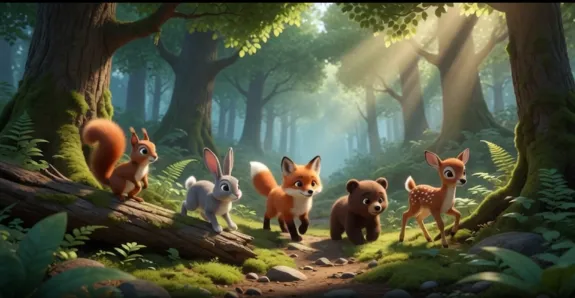
Ever wanted to make awesome animation shorts, only to panic at the thought of frame-by-frame drawing, complicated editing, or pricey freelance quotes?
Relax. You don’t need to be a professional animator to make fun moving clips. Viyou is an AI image and video tool that lets regular people create animation without endless tutorials or artistic skills. Today I’ll walk you through the whole workflow-easy to follow, and actually fun.
Why Viyou for animation?
Traditional animation tools are notoriously punishing. Viyou is built for lightweight AI creation, and its perks are very user-friendly:
- No steep learning curve. You don’t need drawing or editing experience; AI handles most visuals and motion.
- Two flexible workflows: generate animation purely from text, or breathe life into static images you already have.
- Loads of styles: anime, flat cartoon, cinematic realism, retro aesthetics — whatever vibe you’re chasing.
- All-in-one online editor. Once your first draft is ready, add subtitles, background music, transitions and effects without jumping between apps.
- Fast rendering. Your ideas won’t fizzle out while you wait forever for exports.
Quick prep before you dive in
No bulky downloads needed; everything works in your browser.
- Head to Viyou’s official site, register and log in. New users usually get free credits for testing and experimenting.
- Have a rough plan. If you’re using text-to-video, sketch out scenes, characters and actions first. If you already have illustrations or posters, go straight for image-to-video.
- Beginners should avoid jumping straight into long films. Short clips for social media or explainers work best at 15–60 seconds; fewer things can go wrong.
Two ways to create animation — pick what fits you
Method 1: Text-to-video, perfect if you have ideas but no assets
Got a vision, but zero source images? Text-to-video is your starting point.
Open Viyou and find Text to Video to launch the canvas.
Here’s the big tip: don’t be lazy with prompts. If you only type “nice animation,” the AI will probably give you something weird and unrelated. Describe the subject, setting, art style, camera movement and lighting.
Example prompt:
warm flat cartoon style, forest path, small animals walking slowly, soft natural light, slow panning shot, smooth motion, no distorted characters, high definition
Fill in your description, tweak duration and resolution, and stick with HD defaults if you’re new. Hit generate, grab a drink, and let AI make your first animation draft.
Method 2: Image-to-video, great when you already have visuals
Got illustrations, photos or posters you want to animate? Choose Image to Video.
Upload a high-quality image, then pick a motion template. You’ll find slow camera pushes, subtle movement, light shifts and particle effects. A quick tip: illustrations work best with gentle motion; landscape shots shine with cinematic camera movement.
Watch the motion strength — don’t crank it all the way up. Too much movement warps the image and ruins your original art. Once settings are locked, render and watch your static picture turn into flowing animation.
Your first draft is not the finish line; small tweaks make it pop
You don’t need a new app to polish your video. Do it right here.
- Color adjustments: tweak brightness, contrast and saturation to fix dull or off-tone footage.
- Subtitles: essential for explainers. Use auto-subtitles or add custom text; change fonts, colors and text animations.
- Audio: built-in royalty-free music and sound effects help set the mood and draw viewers in.
- Light effects and transitions: smooth cuts between scenes. Keep effects subtle; too many layers make the video messy.
Preview, export and enjoy your work
Always watch the full preview before exporting. Look for choppy motion, distorted figures or misaligned subtitles, and fix anything off.
When you’re happy, choose your export resolution. 1080P works for most social platforms; pick 4K for presentations or client demos. Save the file locally or share directly to social media.
Common beginner mistakes to avoid
- Vague prompts lead to unpredictable AI output. Add details about actions, camera work and style.
- Start with clips under 30 seconds. Longer videos are more likely to glitch or warp.
- Keep your art style consistent. Mixing wildly different aesthetics usually looks disjointed.
- Use sharp source images for image-to-video. Blurry originals produce fuzzy animation.
Final thoughts
You no longer have to become a professional editor just to make animation. Viyou handles the hardest parts: generating visuals and motion. Your job is to focus on ideas. Whether you’re making fun social clips, educational shorts, creative animations or simple workplace demos, text-to-video and image-to-video cover most use cases.
No endless software training required. Open your browser, type a prompt or upload an image, and start animating.