AI Video Generator
 AI Image to Video
 AI Text to Video
 AI Image Generator
 AI Image to Image
 AI Text to Image
 AI Video Generator
 AI Image Effects


 Bring your imagination to life with powerful Viyou AI tools.
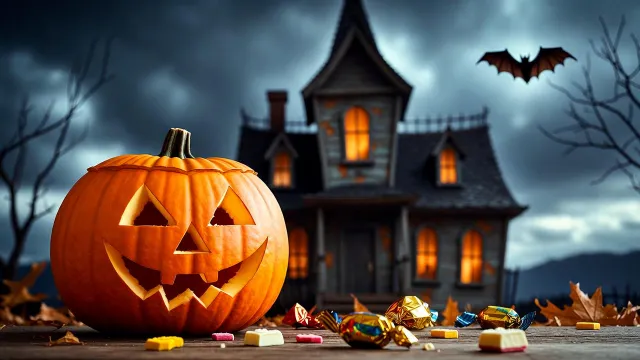
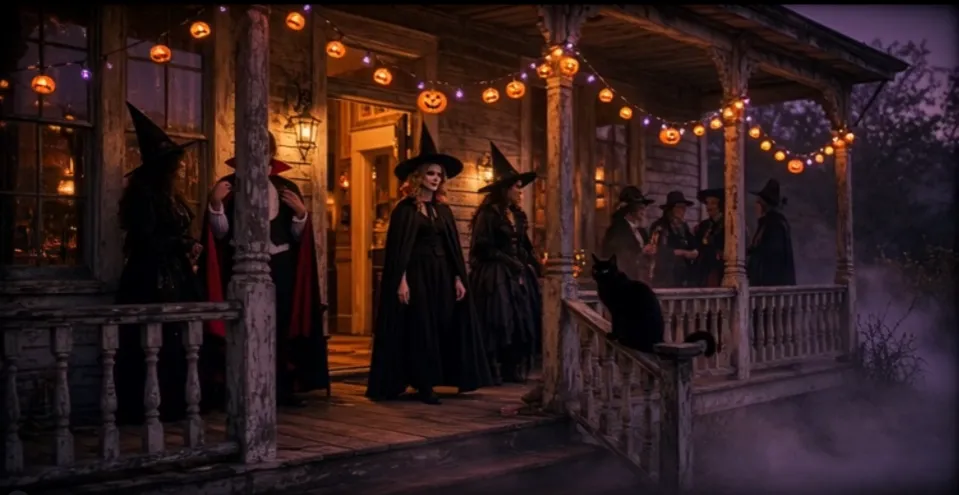
Halloween short videos are everywhere on TikTok, Instagram Reels and YouTube Shorts. If you want cute, spooky-but-not-scary cartoon Halloween clips without complex animation software, Wan 3.0 is a fantastic pick. It supports text-to-video, image-to-video, reference locking, native audio and up to 30 seconds of smooth 1080p footage in one render — perfect for playful Halloween cartoon stories, greeting clips and social content.
This guide walks you through the whole pipeline: style selection, prompt writing, reference control, parameter setup, common pitfalls and ready-to-use prompt examples.
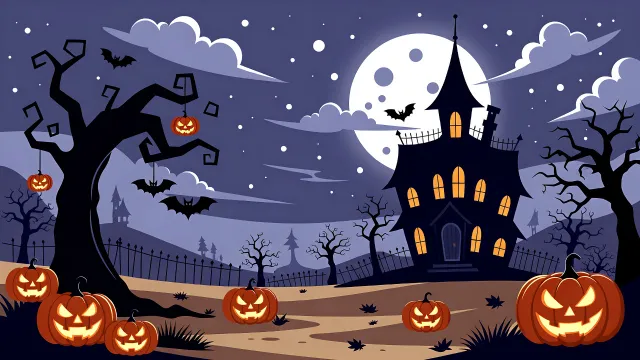
👻Step 1: Pick Your Halloween Cartoon Style First
Wan 3.0 follows your style keywords very strongly. Lock down the aesthetic before writing the rest of your prompt, or you will get mixed, inconsistent visuals. These are the most popular friendly Halloween cartoon styles:
- Pixar-style 3D cartoon: rounded shapes, soft subsurface scattering, warm rim light, cute pumpkin ghosts
- 2D hand-drawn cartoon: clean outlines, flat color blocks, retro storybook illustration
- Claymation / stop-motion cartoon: textured clay, gentle movement, cozy low-light Halloween vibe
- Chibi cartoon: tiny proportions, big eyes, oversized witch hats and candy buckets
Tip: Keep the tone family-friendly. Add keywords like “whimsical, gentle spooky, no gore, kid-friendly” if you want cute Halloween instead of horror.
🎃Step 2: Choose the Right Generation Mode
Wan 3.0 has multiple modes, and each fits a different Halloween project:
1. Text-to-Video: Best for quick concept tests
Start only with text. Great when you want to rapidly explore ideas like a dancing jack-o’-lantern or floating friendly ghost. Good for first drafts.
2. Image-to-Video / First-frame control (Recommended for consistent characters)
Draw or generate a cartoon Halloween character sheet first, upload it as your starting frame. This fixes your character design so the face, costume and shape do not drift across frames — the biggest headache in AI cartoon animation.
3. Omni Reference Mode (Best for series clips)
Attach multiple reference images for character, color palette and background. Use this if you plan to make a multi-shot Halloween mini-story with the same witch, cat or pumpkin character across several scenes阿里云.
😈Step 3: Build a Structured Halloween Prompt
A reliable Wan 3.0 prompt formula looks like this:
[Style] + [Subject & Costume] + [Halloween Scene] + [Action & Camera Motion] + [Lighting & Color] + [Negative Prompt]
Ready-to-use prompt example (Cute Pixar Halloween cartoon)
Pixar 3D cartoon style, a cute little ghost wearing a tiny witch hat, holding a glowing pumpkin candy bucket, walking slowly along a winding forest path lined with jack-o'-lanterns, bats flutter gently in the background, soft orange and purple twilight lighting, slow tracking shot, smooth motion, warm rim light, whimsical Halloween atmosphere, 30fps, kid-friendly, no sharp scary details. Negative prompt: realistic photo, human face, gore, blurry, distorted limbs, flickering face, messy outline
2D hand-drawn version
2D hand-drawn cartoon, clean black outlines, flat color, a chibi black cat in vampire cape jumps on a wooden fence, full moon behind twisted bare trees, falling orange maple leaves, subtle camera pan, retro children’s storybook illustration, soft Halloween palette, orange, purple and black, gentle movement. Negative prompt: 3d render, photorealistic, heavy shadow, horror, blood
Shot-based prompt for multi-scene 30s clip
You can split timestamps directly inside the prompt for simple storyboarding:
Cartoon claymation style, Halloween short story. 0-6s: A smiling pumpkin character lights its candle, warm glow grows. 6-15s: It hops forward, little candy corns bounce beside it. 15-24s: Friendly ghost floats past and waves. 24-30s: Both characters stand together and smile at camera. Soft autumn night lighting, subtle camera movement, smooth clay texture, cozy spooky vibe. Negative prompt: fast shaking, deformed shapes, dark horror, grainy.
Wan 3.0 supports simple timestamp shot directions for longer single-take videos.
🦋Step 4: Configure Video Parameters
Adjust these settings before generating:
- Aspect Ratio: 9:16 for Reels / TikTok, 16:9 for YouTube, 1:1 for Instagram feed
- Resolution: 720p for fast test renders; 1080p for final export
- Duration: 2–30 seconds. For cartoon storytelling, 10–20 seconds works best before motion consistency drops
- Audio: Turn on native audio generation and add keywords like “soft playful Halloween background music, gentle xylophone, light wind sound, no loud jump scare”
- Seed: Save your seed number whenever you get a good character look. Reuse the same seed + reference image for follow-up shots to keep consistency
🫧Step 5: Generate, Iterate and Fix Common Cartoon Issues
Cartoon animation in Wan 3.0 often has a few typical problems. Here is how to fix them:
- Character keeps changing face / shape
Solution: Switch to first-frame image-to-video, upload a clean character reference. Reduce how much the character moves; avoid complex hand gestures. - Flickering outlines or color shifts
Solution: Add “stable color palette, consistent line art, no flicker” to prompt. Use a fixed color reference image in omni reference mode. - Motion is too chaotic or jittery
Solution: Describe slower, simpler movement: “slow pan, gentle sway, subtle bounce” instead of “dancing wildly, spinning fast”. Wan 3.0 handles slow, predictable motion much better. - Accidentally gets scary visuals
Solution: Explicitly add “whimsical, cute, family-friendly, no horror, no sharp teeth” and block scary terms in negative prompt.
🧩Step 6: Post-Production Polish
Wan 3.0 gives you a solid base clip, but a tiny bit of editing elevates Halloween cartoons:
- Trim clips and connect multiple shots in CapCut or Premiere
- Add simple text overlays: “Happy Halloween!”
- Layer extra sound effects: rustling leaves, quiet owl hoot, candy crinkle
- Add subtle color grading to boost orange and purple Halloween tones
🥐FAQ
Q: Can I make a full Halloween cartoon episode?
A: Wan 3.0 single generation is capped at 30 seconds. Build longer stories by generating separate shots with locked character references, then edit them together.
Q: Which reference type works best for cartoon character lock?
A: A clean front-view character portrait as first frame is the most stable workflow. Multiple reference sheets work well but require more prompt tuning.
Q: What is the best frame rate for cartoon?
A: 30fps is default and smooth for cute cartoon clips. If you want old-school animation feel, you can add “24fps animation” in the prompt.
📗Closing
Halloween cartoon videos are one of the most fun ways to test Wan 3.0’s multimodal generation. The trick is not stuffing too many ideas into one prompt — lock your style, keep character action simple, use reference images for consistency, and lean into that warm orange-purple Halloween color mood. With the prompt templates above, you can quickly make cute, shareable Halloween cartoons ready for your social channels.